🚀 Elevate your PC’s wireless game with the DG45 — small dongle, massive freedom!
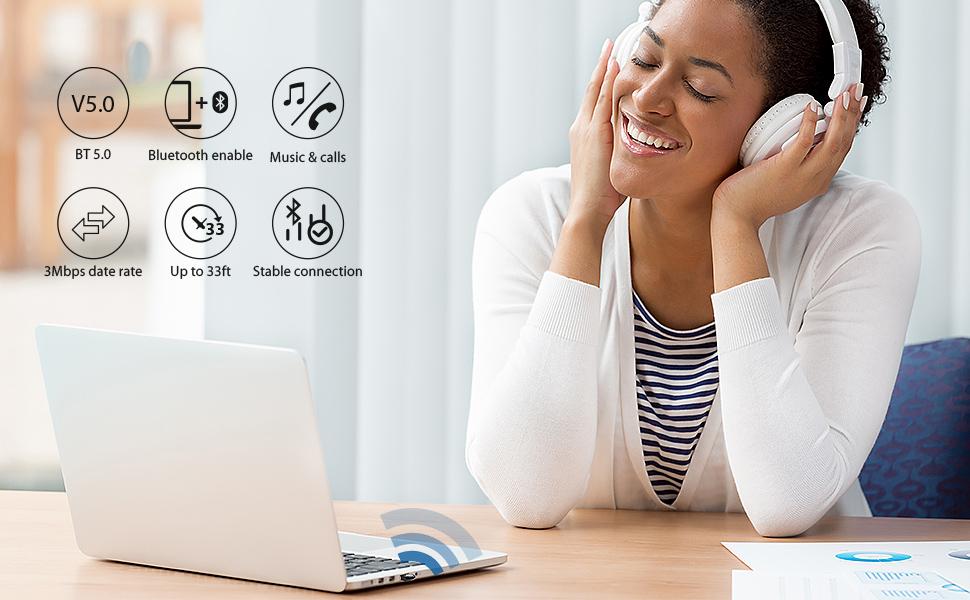
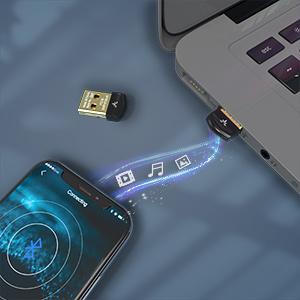
The Avantree DG45 is a Bluetooth 5 USB adapter designed exclusively for Windows 11/10/8.1/8 PCs and laptops. It enables stable, low-energy, high-speed wireless connections, supporting up to 7 Bluetooth devices simultaneously—from headphones and speakers to keyboards and game controllers. Its ultra-compact design ensures it stays plugged in without blocking adjacent USB ports. Ideal for streaming stereo music, taking calls, and gaming with Bluetooth controllers, the DG45 offers a seamless, affordable upgrade to your PC’s wireless capabilities.




| ASIN | B08GM1MV6B |
| Best Sellers Rank | #10 in Bluetooth Network Adapters |
| Brand | Avantree |
| Built-In Media | Avantree DG45 User manual |
| Color | Black |
| Compatible Devices | Plug into PC/Computer/Laptop with Windows 11/10/8.1/8 Only to Connect Bluetooth Headphones/Speakers/Keyboards/Mouse/Printers, and Bluetooth game controllers (such as PS4, PS5, or Bluetooth version of Xbox One/Series controllers) (Excluding 2.4GHz Wireless Devices, such as keyboards or mice from brands like Logitech, Arteck, or Eagletec, and 2.4G game controllers like Xbox 360, non-Bluetooth Xbox One, Xbox Series X/S.) Compatible Devices Plug into PC/Computer/Laptop with Windows 11/10/8.1/8 Only to Connect Bluetooth Headphones/Speakers/Keyboards/Mouse/Printers, and Bluetooth game controllers (such as PS4, PS5, or Bluetooth version of Xbox One/Series controllers) (Excluding 2.4GHz Wireless Devices, such as keyboards or mice from brands like Logitech, Arteck, or Eagletec, and 2.4G game controllers like Xbox 360, non-Bluetooth Xbox One, Xbox Series X/S.) See more |
| Customer Reviews | 4.3 out of 5 stars 27,814 Reviews |
| Data Link Protocol | USB |
| Data Transfer Rate | 3 Megabytes Per Second |
| Hardware Interface | Bluetooth 5 |
| Item Dimensions L x W x H | 0.9"L x 0.53"W x 0.25"H |
| Item Height | 0.6 centimeters |
| Item Weight | 2 Grams |
| Manufacturer | Avantree |
| Product Dimensions | 0.9"L x 0.53"W x 0.25"H |
| Warranty Description | Warranty - 12 months (extend to 24 months with product registration) | Extensive Support: Chat, Email, Phone, Online Clinic, Video Tutorials, FAQ and Registration - avantree.com/support |
D**C
Works perfectly with Windows and very cheap.
I use this dongle daily and it works perfectly. It's very cheap, sits at the back of my PC and does what it needs to do. There are a lot of expensive bluetooth dongles out there but this one does the job for less. Works perfect with Windows 10 or 11 which is what i use it with and I have found it to be compatible with jabra and apple headphones. Connects nicely, haven't had any connection issues ever.
J**O
Great Value and Works Great.
For some reason, my wireless key board and ireless mouse worked fine, but I could not pair my wireless headphone with my Windows 10 Pro. I ordered this, plugged it in, went to pair it..... but it did not work. I updated my Bluetooth drivers and I was able to pair my headphones without having to restart the computer. An added value is the low price.
J**P
I am happy to report that everything is working perfectly
Note: This is for the DG40S model, as I bought this for use on a Windows 7 PC. My goal was to find a USB Bluetooth adapter that would allow my PS4 DualShock 4 to connect to my PC without the need for DS4Windows software. Also note that the DG40SA being sold here is clearly advertised as not being compatible with Windows 7, so I didn't try that one. I am happy to report that everything is working perfectly! Though, as described here and on Avantree's site, this adapter is NOT exactly plug and play when used with Windows 7 (it apparently is with Windows 10), but it's close enough! Very simple to get working. Just go to their support site, click the DG40S icon, then look for the link labeled "Latest Driver for Windows 7." Before you click it, take note that there are also many useful support links here, in case you run into problems. When ready, click the Windows 7 driver link, and you'll see another new list of more helpful links, many of them with videos outlining the simple step-by-step install process. YOU MUST WATCH A VIDEO OR TWO HERE! It will only take a few minutes, promise. BUT WATCH BEFORE YOU INSTALL! Lol. It's just a series of left/right/double clicks that are required, takes no more than 2 minutes, but since their interface is so artistically done in a 1982 programming style, you'll save time if you just watch a vid first. NOTE: ALL STEPS OUTLINED IN THE VIDEOS REGARDING CONNECTION (key words: ALL TWO OR THREE STEPS) MUST BE DONE WHILE THE DUALSHOCK CONTROLLER IS IN PAIRING MODE! To enable this, hold down the center PS button and the Share button AT THE SAME TIME, for a few seconds, until the DualShock's light starts flashing. This means it's searching for Bluetooth devices to pair with. You might have to re-enter it into pairing mode if the lights stop flashing. Anyway, before you know it, your DualShock 4 will be connected - with great range, too. Has been working flawlessly after hours of gaming! As it turns out, I needed tech support for something I goofed up on (all that was needed was a restart of a couple things that I somehow missed). I called their support number (conveniently displayed on the main screen of their driver software after installation), and was almost immediately set up with the next tier of tech support via a live, screen-sharing conference! They sent me a link via email that directed me to download the Chrome extension called GoToMeeting Pro Screensharing. Pretty slick/legit extension, nice interface. Also had the ability for me to select specific windows for screensharing, or to just enable the sharing of my entire screen. Anyhow, a couple people on the phone walked me through a couple steps I somehow goofed up on (follow the steps above and you'll be fine, lol). They were super helpful and kind. Pretty amazing customer service, some of the best I've experienced from any company, no joke. Anyhow, if you're using this with Steam, make sure you follow online guides how to do it. Also ridiculously simple, just open up Steam, enter Big Picture Mode, click the settings gear button --> controller settings, then make sure the "PS4 Configuration Support" box is checked. You might have to restart Steam, or restart the controller's Bluetooth connection, but yeah still simple in the end, I was just in idiot mode for a few minutes there... Hope this helps!
A**.
This works great: here's how to get it working on a fussy old laptop
I really *needed* a satellite keyboard for my standing desk. But I had nothing but trouble with my built-in bluetooth...maybe because my laptop dates from 2014, even though it is Win10 now. So this Avantree dongle rescued me. Connecting to this dongle would be easy on a plug-n-play Windows 10 modern PC, but since I am not a geek, and my laptop thinks it has bluetooth but it doesn't, I had some problems. (Or maybe--per my husband--I just have problems.) Anyway, Avantree was fast to help and guide me through it in no time. The following is what I *think* I did to make it work. IIRC. WIMN. 1 Turn off PC's native bluetooth, if any (Start menu> Settings>Devices) 2 Download BlueSoleil software from Avantree DG40S product website and install it on PC. (Don't accidentally somehow install it twice or the rest won't work properly and you will have to uninstall both BlueSoleil bluetooth drivers in the Device Manager and try again. Like me.) 3 Right-click the zig-zag bluetooth icon in the system tray (lower right) and select "Display Classic View." The BlueSoleil window opens. 4 Left-click once on the orange globe. That should show the name of your PC in a message box AND in yellow text at the bottom left of the window (such as, "MyPCname: 7 services"). 5 Plug the Avantree bluetooth dongle into your PC's USB port. 6 Set your bluetooth-capable device (for me, a keyboard) to pairing mode (see your device/keyboard info for how). 7 Double-click the orange globe to search for available bluetooth devices. An icon for your device and its name ("Keyboard") appears somewhere around the orange globe. 8 Right-click on your device icon and select "Pair." 9 A "PassKey" message box appears showing a 6 or 8 digit number. Type exactly that number on your device (keyboard) and click Enter. (Be accurate but fast: it only gives you a short time to do it.) 10 Wait for a message that says "Paired." 11 Right-click again on your device icon and select "Search Services." Wait for a message that says something like "DeviceName > 1 Services" in yellow text at the bottom left of the window. 12 Double-click on the small highlighted icon along the top of the BlueSoleil window that corresponds to your newly-paired device. (For me it was the mouse icon, which represents user interface devices like a keyboard.) This causes an actual connection to be made to your newly-paired device (to my keyboard). You see a ray appear in the BlueSoleil window going from the orange globe (PC) to your device. That means your device (keyboard) is connected (just pairing isn't enough). BlueSoleil should remember what's paired during normal use and reconnect automatically. If your device is disconnected, right-click the bluetooth icon in your system tray (it should live there), open BlueSoleil in Classic View, select your device icon, and then double-click the proper icon along the top to reconnect (like the mouse, for a user interface). Doesn't take long. You can now use your bluetooth device. Your device talks to the Avantree dongle, the dongle talks to the BlueSoleil driver (software), and BlueSoleil talks to your PC. Everybody works together. (Try that in politics.)
L**E
Great Replacement
It arrived super fast, great replacement if you lose your dangle for Bluetooth.
R**A
Almost bricked my computer; will never buy from this company again. EDIT: It is somehow worse than I thought
I have a desktop running Windows 7 Premium, and I use a wireless mouse. I believe these two factors had something to do with the issue I had. For starters, the software I was directed to install via the manual is very poorly laid out. Disorganized and uninformative are words that come to mind. It may be a personal preference, but I'll be honest: you could do far better. As for where the issues came in, it began after rebooting my system after installing the software. I noticed that my lock screen did not appear upon startup. It was only the background. No text box or anything for me to sign in to my computer. I tried typing in my password anyways to see if it was only displaying weird or not at all, but this was not the case. This issue was consistent with every startup. I realized that, after a few minutes (and I literally mean close to 5 minutes), the text box appeared and I could sign in successfully. I then encountered another issue where my mouse button input functions were completely disabled. I could move the mouse around and scroll, but none of the buttons themselves registered. I resorted to navigating via keyboard controls. First thing I did was uninstall and delete any trace of that bluetooth software (I removed the bluetooth device itself long before then). Upon restart, my lock screen was fixed, but the mouse functions were still disabled. I then ran several scans with Avast and Malwarebytes, but nothing was detected. Eventually, and I have no idea how, the problem resolved itself and my mouse has returned to its normal, fully functioning capabilites. I do not recommend this product to anyone. I will continue looking for bluetooth adapters. I can recommend Asus products (I'm using their motherboard and wifi adapter) and I will be trying their bluetooth devices next. Their devices are also listed at the same price, if not, cheaper. EDIT: Alright, so I use Logitech devices. A G710 keyboard and G700s mouse. Logitech gaming devices, which these are, have a software that lets me save profiles for different game so the various macro keys on the devices do specific things for each game. I have over fifteen different profiles set up for various games. This software, somehow, deleted ALL of them, save for the default profile. While not the biggest problem to some, for those with profiles for mice or keyboards that have macro keys, and not only gamers but those who use these functions for photo and video editing, programming, and the like, this is an absolute nightmare. It will take me several hours to go through each game again and recreate a profile and recall which buttons did what. I am fighting the urge to riddle this review with obscenities. This product, and its software, is not only non-functioning and terrible, it is borderline, no, it IS malicious. DO NOT buy this product. I'm now concerned for what other things it's ruined.
T**M
Great Alternative
My laptop's Bluetooth suddenly disappeared and I couldn't get it back. This little gadget is a great alternative, just plug and play.
M**.
Finally an inexpensive gadget that isn't "cheap."
There’s not a lot to say about this little guy—and honestly, that’s the highest praise I can give it. It works. That might sound basic, but let’s be real: how many $8 tech gadgets do exactly what they claim, no drama? Plug it in, Windows 10 (RIP) recognizes it instantly, and it’s off to the races. I’ve used it all over my house—walls, floors, the works—and haven’t run into any connection issues. The real Bluetooth limitation is going to be whatever you’re pairing, not the dongle itself. Cheap headphones? You’ll max out at 30 feet. High-end cans? You’ll get farther than you think. Profile: It’s tiny and low-profile, so most of the time I forget it’s even there—except when I blindly try to plug something else into the same port and end up questioning my life choices. Not the dongle’s fault. That’s just me vs. physics. Performance: I’ve run high-end game controllers, headphones, and even printers through this thing without a hitch. It handles multiple devices, and everything pairs up like it’s built-in. If you’re here because you clicked the top-rated dongle and wondered if it’s too good to be true, it’s not. You picked the right one. Bottom line: Cheap. Works perfectly. Stays out of the way.
Trustpilot
2 weeks ago
3 days ago