Buy anything from 5,000+ international stores. One checkout price. No surprise fees. Join 2M+ shoppers on Desertcart.
Desertcart purchases this item on your behalf and handles shipping, customs, and support to France.
🚀 Upgrade your workflow, not just your storage!
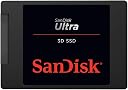
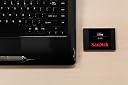
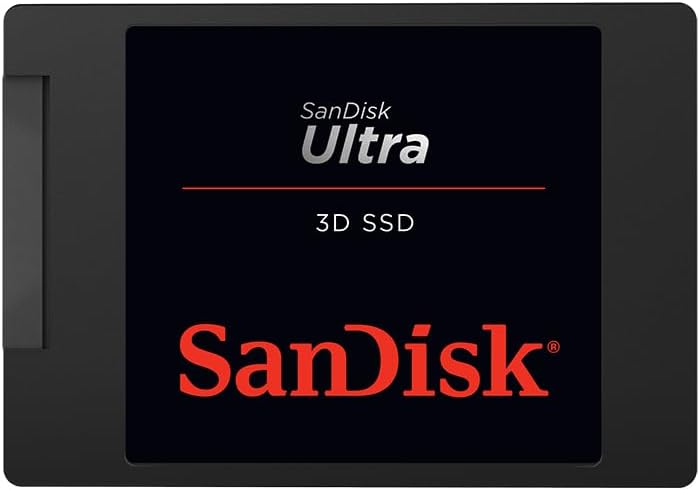
The SanDisk Plus 2TB 2.5" SATA III SSD delivers up to 545MB/s read speeds and 450MB/s write speeds, combining massive storage with shock-resistant durability. Designed for professionals seeking faster boot times, reliable performance, and easy installation, it’s the perfect internal upgrade for laptops and desktops aiming to elevate productivity and safeguard critical data.


| ASIN | B07YFFJK2Q |
| Best Sellers Rank | 10,687 in Computers & Accessories ( See Top 100 in Computers & Accessories ) 74 in Internal Solid State Drives |
| Box Contents | No |
| Brand Name | SanDisk |
| Cache Memory Installed Size | 2 |
| Color | Black |
| Compatible Devices | Desktop, Laptop, Game Console |
| Customer Package Type | Certified Airless Flat Package |
| Customer Reviews | 4.7 4.7 out of 5 stars (38,253) |
| Data Transfer Rate | 6 Gigabits Per Second |
| Digital Storage Capacity | 2 TB |
| Enclosure Material | Aluminium |
| Form Factor | 2.5-inch |
| Global Trade Identification Number | 00619659177836 |
| Hard Disk Description | Solid State Hard Drive |
| Hard Disk Form Factor | 2.5 Inches |
| Hard Disk Interface | SATA 6 GB/s |
| Hard Disk Rotational Speed | 7200 |
| Hard-Drive Size | 2 TB |
| Hardware Connectivity | SATA 6.0 Gb/s |
| Installation Type | Internal Hard Drive |
| Item Dimensions L x W x Thickness | 10.1L x 7W x 0.7Th centimetres |
| Item Weight | 1.76 Ounces |
| Manufacturer | SanDisk |
| Media Speed | 450.0 |
| Model Name | SanDisk SSD Plus |
| Model Number | SDSSDA-2T00-G26 |
| Network Connectivity Technology | SATA |
| Number of Items | 1 |
| Product Features | Shock Resistant |
| Product Warranty | 3 year manufacturer |
| Read Speed | 535 Megabytes Per Second |
| Specific Uses For Product | Business |
| UPC | 619659177836 |
| Unit Count | 1.0 Count |
D**.
SDD works great. Easy to setup as a Windows OS C: Boot disk.
My wife's HDD on her 16 month old Dell 8930 Desktop had been playing up. I already had to re-install windows 10 around a month ago. It was ok for a while, but started getting crashes again over the last few days. I decided to replace the single HDD with a Sandisk SSD Plus 240GB, to be used as the boot disk, and a separate 2TB HDD for Data. The current C-drive was only using around 60GB for Windows 10 and other installed program, so 240GB was more than enough, and its really good price. The Sandisk product comes with an unreadable 2-point 10 x 3cm booklet, don't know what’s in it, I can't read it. However, the Sandisk website is fairly useful. Note 1, the Dell has removable drive bay cradles which can accommodate either a HDD or SDD drive, but many Desktops won’t have that so you may need to also buy a "2.5 to 3.5 inch SDD cradle", some screws to secure the SDD and cradle, a SATA Data cable (most Desktops will come with extra power cables, but check first). I think you can get kits which include all that for about £5. Note 2, when you receive your SDD drive, make a note of the serial number, it’s on the back of the drive you need it to register the product on the Sandisk Website fro 3 year guarantee. If you don’t take a note of it before you install the SDD, you’ll have to uninstall and re-install it all over again. Installation is easy, just install a cradle, screw the SDD to it, connect your SATA Data Cable and power cable. My SDD was to be used as a bootable drive, to hold windows and all installed programs. The easiest way to do that is to use Acronis True Image Software, and clone your existing drive (which is free if using a Sandisk or WD drive, link to Acronis from the Sandisk website). My existing drive was 1TB, but with only around 450GB used. 320GB of that was photos, the SDD is 240GB. So I backed up all the data on the existing C Drive to an external portable 2TB HDD, then removed all the photos from the existing C drive, reducing its size down to about 130GB, which meant it would easily fit on the 240GB SDD. In Windows 10 use the Disk Management program (best to access that via Computer Management App, (run as administrator eg Left click)) to first initialise you SDD, so that the computer will recognise it. Just set it up as a “ Simple” partition, use full size, doesn’t matter what Drive number you assign, but don’t use A, B, or G (Windows will automatically reassign the Boot Disk(SDD) as the C: drive when you restart the PC.) When the SDD is recognised you will see the empty SDD in File Explorer. Run Acronis, select the clone tool, choose automatic mode which will clone all partitions. The amount of data on the source disk must be less than the available space on the destination SDD. I have 5 partitions on my old HDD C: drive, 3 recovery and 1 x EFI. These are replicated exactly by Acronis, the remaining C: partition holding the Boot, and OS and Data is automatically shrunk down into the remaining space on the SDD, about 207GB, so no problem creating 240GB SDD from a 1TB HDD. Follow the instructions, restart the computer, and Acronis will take over and clone. When cloning is complete, PC will shut down. What I did then is unplug the Data cable from the old HDD, and swapped it over to connect to the SDD, that way you don’t have to amend the Boot order in the BIOS, if you don’t do that you have to amend the BIOS. The SDD worked a treat, much faster startup, shutdown and program load and has fixed my crash issues. I could then bin the old HDD and replace it with a new 2TB HDD D:Data drive, and onto that, re-import the photo data from my external backup drive.
L**O
Great SSD, achieving more speed and quieter running
I purchased an entry level notebook Acer Aspire 14 ES1-431 and wanted to see if I could transform it by swapping out the 500GB mechanical hard-drive for the SanDisk Plus 240GB SSD. I was rather wary of the lowish storage (240GB) of the SSD. So before I made the move I downloaded all the latest updates from Microsoft. I was rather taken aback by the huge update for Windows Home v1607. Not only did this take hours to finish but it increased the storage on my hard-drive by 20GB! By utilising the Windows System Cleaner I managed to delete the cause of the extra storage which was the Windows.Old folder which housed the previous Windows version in case one wanted to revert. So having got the storage down to 44GB which included Windows 10 Home, Microsoft Office Plus 2016 and Adobe Acrobat, I set about defragmenting the old drive before cloning the contents to the SanDisk SSD using a USB 3 to Sata adapter (Sabrent) and the free Macrium Reflect software. All went well and I took the opportunity to divide the SSD into separate partitions for the operating system and my data files. I found that there was 222GB storage available on the SSD so I allocated 80GB to the operating system and 142GB to the data files. Once the SSD was successfully cloned (2 hours) and installed, I directed my Desktop, Documents, Videos, Music, Pictures and OneDrive folders to the data partition (E), trying to stop using up the storage on the operating system partition (C). The SanDisk SSD was the same size as the original hard-drive and the screw holes were in similar places, so it was an easy replacement fit. I was pleasantly surprised to see that the notebook took one-third the time to boot to the Desktop screen from pressing the power button. So the new SanDisk SSD did the trick and now I have quieter, faster and cooler running notebook. The modification was worthwhile and great fun!
B**N
Superb upgrade
Excellent upgrade for an ageing machine. I used to build PCs as a casual gamer years ago and hadn't heard much about SSD hard drives before. I have installed RAM, changed CPUs, power supplies, graphics cards etc before but this has been the most noticeable boost in performance out of all of them. Boot up times significantly faster as is normal running tasks. The data transfer speed greatly surpass the old HDDs. I had been prompted to change my hard drive simply because I noticed some bad sectors on my traditional 500gb HDD, using CrystalDisk software and therefore indicating it potentially failing. I decided to do a little bit of research and it was commonly suggested an SSD as a reasonably cheap upgrade. This particular one is a SATA connection and was a straight swap for an existing spare hard drive (obviously make sure you have spare power supply too!). Easy to install, and a simple piece of software to clone your operating system is all that required. Then adjust boot order in your BIOS to the new SSD, voila! It obviously gets quite pricey with SSDs for lots of memory. For me as I don't do an awful lot of gaming etc anymore I didn't require lots of space other than what was needed for the OS and have spare HDDs for photos and documents etc. In summary, a fantastic upgrade without breaking the bank, especially for a PC that isn't used all that often anymore. Would recommend
R**W
I work in film and television creating 3D animation and VFX. I bought this SSD to use as a dedicated video playback Drive. It's incredibly fast and reliable. Great value!
E**R
Fiyat Performans
J**)
À la lecture de certains avis, avant d'acheter ce SSD de 240Go, j'ai hésité. Quelques acquéreurs s'en plaignaient, alors que d'autres - heureusement majoritaires - en étaient enchantés. Finalement, l'ayant comparé à d'autres matériels proches, j'ai opté pour lui (car j'en possède un autre, de 960Go, depuis plusieurs années et n'ai jamais rencontré de problèmes avec). Pour être clair quant à son installation (et sincère avec Ceux ayant la patience de me lire), je préciserai que j'ai consacré deux jours de travail à la préparation du notebook devant l'accueillir. En effet, celui-ci s'est avéré très mal aisé à démonter (sans risquer de porter préjudice a sa fiabilité). Aussi n'ai-je pas hésité à bien réfléchir avant chaque 'geste technique'. Par ailleurs, sur un desktop récemment assemblé, je disposais d'un rack amovible pour y intégrer des périphériques externes 'en mode interne' ; ce qui m'a permis de sauvegarder les partitions (même celles 'cachées'), grâce à un logiciel professionnel de sauvegarde adéquat. Il m'a fallu recalculer les espaces de stockage (pour ajuster les dimensions des partitions), car ce support SSD est d'une capacité moitié moindre à celle du disque originel. Parallèlement, ma femme a acquis un boîtier externe USB3, afin d'avoir la possibilité d'accéder à 'ses données' originales. Bref, tout ceci étant fait, j'ai fait redémarrer le notebook... Et le résultat fut décevant : le disque n'était pas reconnu. Oups ! Avais-je fait une erreur au remontage ? Pas vraiment. En fait, la non reconnaissance du disque SSD était liée à une anomalie relative au MBR (repère indispensable au bon démarrage du système installé initialement). Ne disposant pas de support de restauration 'bootable' pour ce poste, j'ai téléchargé (en format ISO) l'image du système d'exploitation correspondant, sur le site de son éditeur (que j'ai remercié chaleureusement d'avoir prévu cette possibilité pour ses clients). Après gravure du DVD système équivalent, j'ai fait démarrer le notebook depuis le DVD d'amorçage ; mais je n'ai eu nul besoin de réinstaller l'OS. En effet, ce DVD d'installation prévoit la possibilité de "Réparer le démarrage du PC". Ce que j'ai fait. Et tout s'est bien passé. Après réinitialisation du MBR (et sortie du DVD), le notebook a enfin correctement redémarré. Eureka ! Cet EasyNote étant un notebook d'entrée de gamme qui 'se trainait' auparavant, au cours des tâches en exécution. Le processeur et le disque dur étaient souvent saturés à 100% et demandaient de la patience à l'utilisatrice du poste (ma Femme). C'était un vrai calvaire pour Elle. Désormais, le fonctionnement du notebook est devenu très rapide et ne pose plus de problème. Sauf 'un' : j'ai fait une erreur en remontant la nappe de liaison du clavier (très difficile à remettre en place ; même aidé par ma Femme). Le clip de fixation s'est cassé d'un côté et crée donc un faux contact permanent. Heureusement, Elle avait acheté un 'ensemble souris-et-clavier-étendu' ; ce qui a résolu le problème rencontré. Par ailleurs, je soulignerai aussi que les claviers de notebooks ne sont pas tous simples à démonter-remonter (cela dépendant de la conception du produit). Sur cet EasyNote (dont je vous laisse deviner la marque ;-), le clavier n'est pas conçu comme d'autres claviers (généralement aisés à démonter) ; car les touches y sont encastrées dans la partie supérieure du boîtier du notebook (or, je n'ai pu trouver, sur le site du fabricant, de documentation qui me permettrait d'en connaître la technique de démontage-remontage). Pour conclure, il est clair que l'installation de ce 'disque' SSD a résolu les difficultés rencontrées avec ce portable. Ce SSD est donc un très bon produit. Mais il faut cependant posséder un 'minimum de pratique technique' pour l'installer et en profiter sereinement. Par ailleurs, ce SSD étant vendu à un prix 'très compétitif', il ne faut pas s'attendre à ce qu'il soit fourni avec des accessoires (comme le SSD que j'ai acheté il y a 4 ans, mais qui coûtait beaucoup plus cher), tel celui permettant d'en 'corriger la faible épaisseur' dans le logement du boîtier hôte. Bien sûr, il s'agissait ici de faire en sorte que ma Femme dispose de son PC avec toutes les données qu'Elle y avait préalablement stockées. D'où la description de cette expérience (demandant beaucoup de patience et d'attention). Cependant, s'il n'avait s'agit que de l'installer dans un PC neuf (ce que j'ai aussi fait antérieurement avec un 3ème SSD de taille intermédiaire (480Go) pour le desktop évoqué, en lui adjoignant d'autres disques internes 'traditionnels' de grandes capacités ; ainsi que le rack cité, afin d'y effectuer des sauvegardes ou des travaux de maintenance, selon la diversité des besoins), cela n'aurait pas été si 'complexe'. Si vous avez pu et su lire ce texte jusqu'ici, je vous en remercie. Ainsi, dans le cas où Vous auriez besoin de changer le disque dur de votre ordinateur pour un SSD de ce type, n'hésitez pas : vous en serez probablement satisfaits. Mais penser à bien organiser cet assemblage, en vous référant aux notices adjointes à votre PC. Bon courage !
M**T
Very fast and solidly performing SSD, the best we have owned to date.
D**N
Ich habe die SanDisk SSD Plus 240 GB in meinem Laptop/PC eingebaut und über Monate genutzt — so sehe ich ihre Stärken und Schwächen: ✅ Was mir gefällt: -Der Start- und Ladevorgang ist deutlich schneller geworden — Bootvorgänge, Programmstarts und Dateizugriffe fühlen sich deutlich flüssiger an als mit einer klassischen HDD. Das bringt im Alltag und bei Arbeit/Office-PC spürbar mehr Komfort. -Die SSD läuft ruhig und leise — kein Lüftergeräusch, kein Rattern wie bei einer HDD. Gerade in ruhigen Umgebungen oder beim Home-Office merke ich das als echten Pluspunkt. -Die kompakte 2,5-Zoll-Bauweise und SATA-Schnittstelle machen sie sehr kompatibel mit vielen Laptops und Desktop-PCs — der Einbau war unkompliziert und ohne Spezialwerkzeug möglich. ⚠️ Was man wissen sollte / mögliche Nachteile: -Mit 240 GB ist der Speicherplatz nicht riesig — für viele Programme, Betriebssystem und ein paar Dateien reicht es, aber große Spielesammlungen, Videos oder große Datenbibliotheken brauchen schnell mehr Platz. -Für sehr anspruchsvolle Aufgaben (z. B. große Video-Projekte, professionelle Foto-Bearbeitung, viele große Dateien) könnte der Speicherplatz zu knapp sein — dann lohnt eher eine SSD mit 500 GB oder mehr. -Wie bei allen SSDs gilt: Für maximale Lebensdauer und Performance ist regelmäßige Wartung und Rücksicht bei Auslagerung/Backup sinnvoll — ich würde größere Datenmengen nicht dauerhaft nur auf der SSD lassen, sondern ergänzend sichern. 🎯 Fazit: Für mich ist die SanDisk SSD Plus 240 GB ein sehr gutes Preis-Leistungs-Paket, wenn du deinem PC oder Laptop einen spürbaren Leistungsschub verpassen willst — und vor allem: schnelleres Booten, flüssigeres Arbeiten und leiseres System möchtest. Für Alltag, Office, Surfen oder moderate Nutzung reicht der Speicher völlig. Wenn du jedoch große Datenmengen, viele Spiele oder schwere Dateien hast, würde ich eher gleich eine größere SSD nehmen — aber für den Einstieg bzw. als günstiges Upgrade: klare Empfehlung.
Trustpilot
2 days ago
2 months ago